
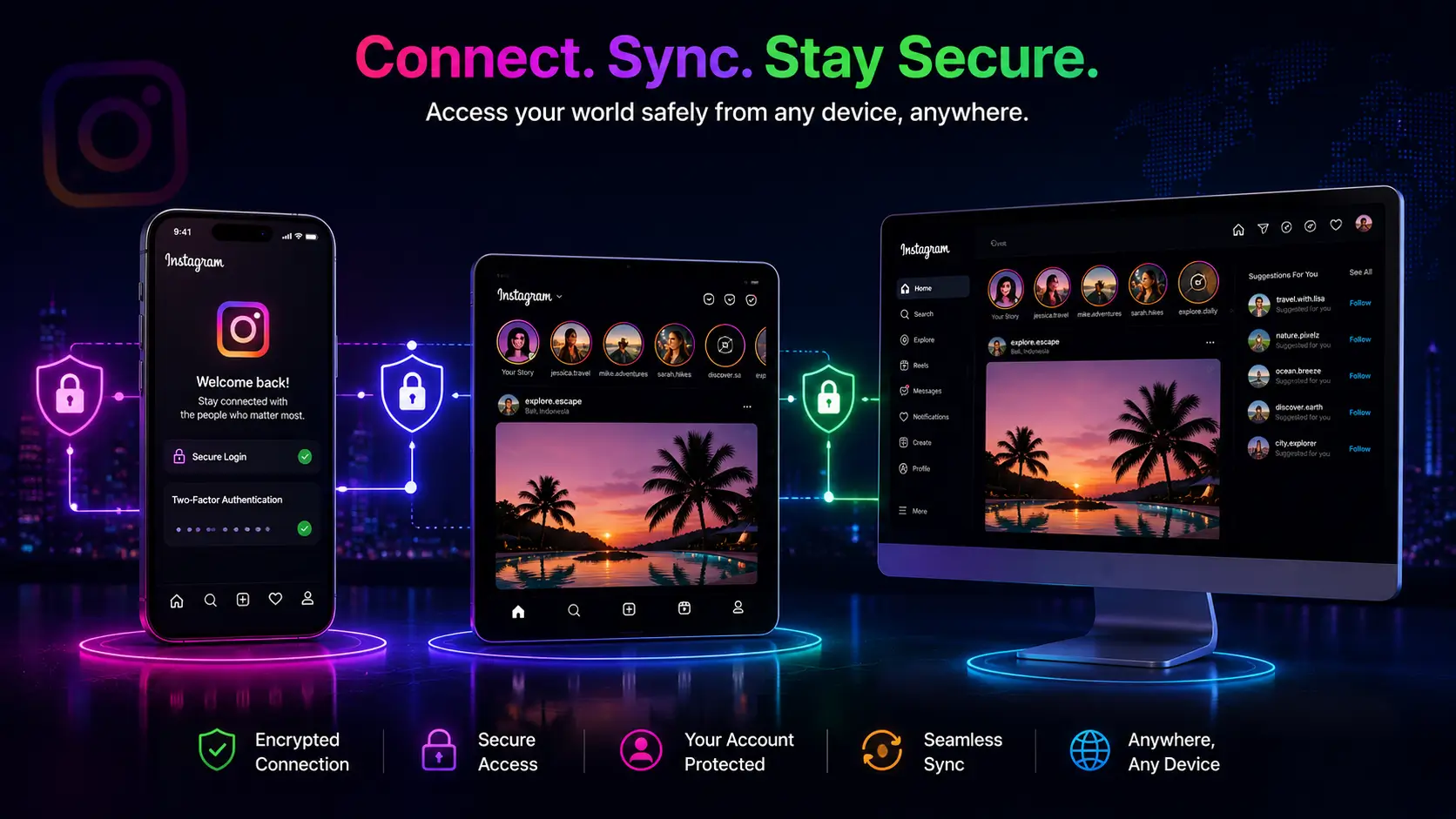
Device-specific anonymous viewing means adapting the same core technique — routing your request through a web tool's server instead of your own logged-in account — around each platform's own quirks, since iOS app deep-linking, Android app defaults, and desktop browsers each threaten your anonymity in a different way.
Every click, scroll, and view on social media gets logged and attributed to an account by default — and when you watch someone’s Instagram story through the native app while logged in, your name is recorded on their viewer list instantly. For plenty of legitimate reasons — market research, checking on an account without signaling your interest, or simply preferring a lower digital profile — that lack of privacy is a real obstacle.
The trouble is that device-specific anonymous viewing isn’t one universal trick. What works cleanly on a desktop browser can fail entirely on an iPhone because of how iOS handles app links, and Android has its own separate quirks. This guide walks through the actual steps for each platform, plus the myths that don’t hold up anymore.
The core concept behind anonymous viewing
Every device-specific method below relies on the same underlying principle, so it’s worth understanding once before getting into platform quirks. You cannot achieve real anonymity through the native Instagram app while logged into your own account — the app is, by definition, always attributing activity to you. Anonymous viewing instead routes the request through a separate web tool: your browser talks to the tool’s server, and that server — not your device, not your account — fetches the public content from Instagram. Instagram logs the tool’s server as the requester, and your personal identity never enters the transaction at all. Every platform-specific step below exists purely to make sure that flow doesn’t get accidentally short-circuited by your device trying to “helpfully” open the native app instead.
iPhone (iOS)
iOS is the most tightly integrated of the three environments, which cuts both ways for anonymity. Tapping an Instagram link in Safari or Chrome frequently triggers a “deep link” straight into the native Instagram app — and if that happens while you’re logged in, your anonymity is gone instantly.
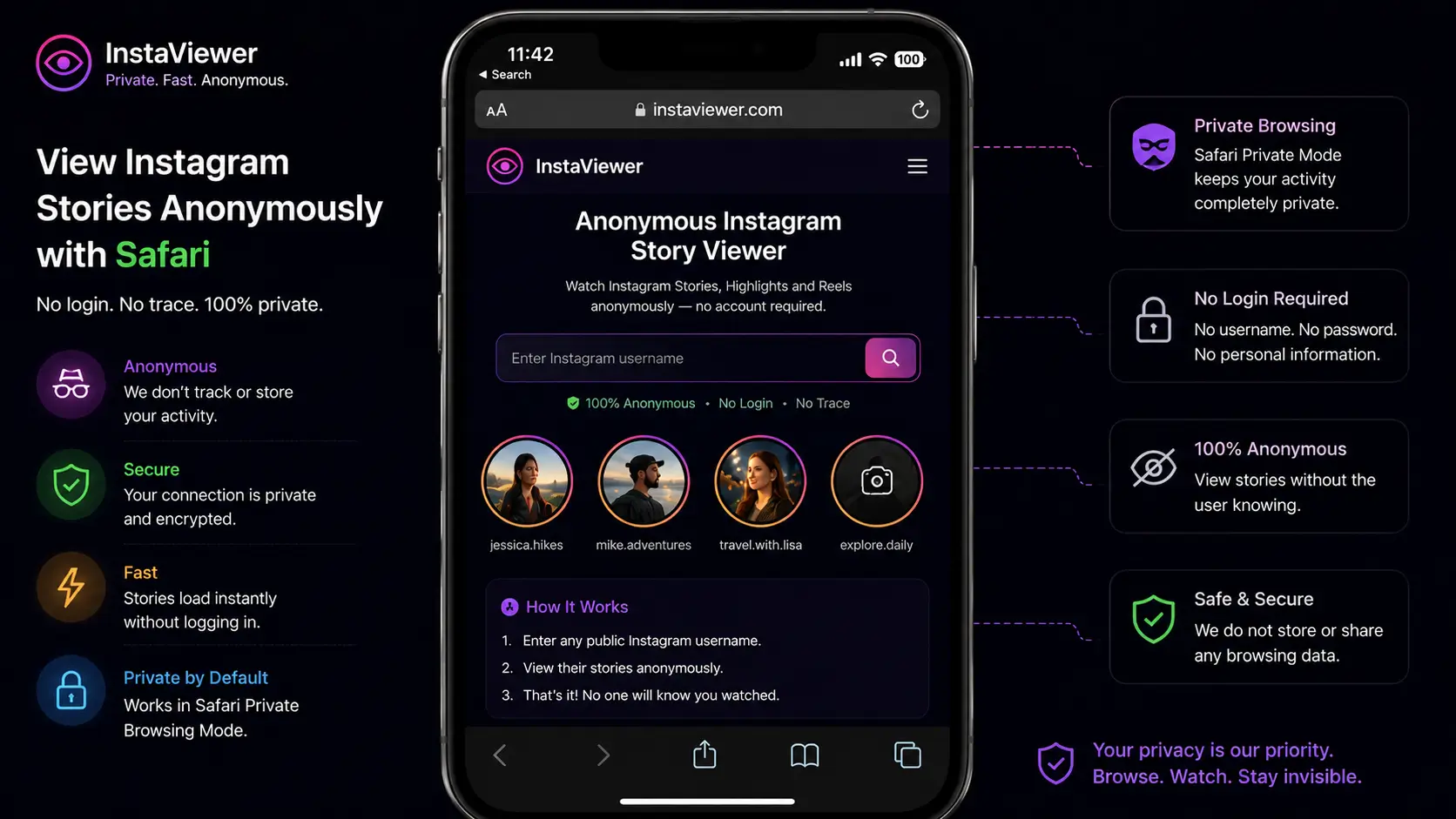
The Safari Private Tab method:
- Open Safari and tap the tabs icon.
- Switch to a Private tab group (iOS 17+ may prompt for Face ID to unlock private tabs).
- Type the web tool’s address directly into the URL bar rather than searching for it — search-engine result links are more likely to trigger an app deep-link than a manually typed URL.
- Enter the target username on the site itself.
- View the story directly in Safari’s own video player.
Skip the App Store entirely for this. Searching “anonymous story viewer” in Apple’s App Store returns plenty of results, and the honest advice is to avoid essentially all of them. Apple’s guidelines push developers toward official APIs where feasible, and a large share of these apps compensate by requiring an Instagram login to function — the moment you do that, you’ve traded a small privacy inconvenience for a much bigger account-security risk. The browser method above avoids that trade entirely.
If Safari keeps redirecting you into the app anyway. Occasionally a link will deep-link even from a private tab if it was shared through another app first (Messages, a search engine’s app, a social feed) rather than typed directly. When that happens, closing the Instagram app fully (swipe it away from the app switcher, not just backgrounding it) before retrying the browser method usually breaks the redirect loop, since a running background instance of the app is more aggressive about intercepting matching links than one that isn’t active at all.
Android
Android grants more flexibility than iOS, but that flexibility comes with its own risk surface — mainly around sideloaded APK files claiming to offer the same functionality.
The Chrome Incognito method:
- Open Chrome, tap the three-dot menu.
- Select New Incognito Tab — this ignores any cached Instagram session data sitting in your regular browsing profile.
- Navigate to the web tool and enter the username you’re checking.
Clearing app defaults (worth doing once). Android is persistent about opening Instagram links directly in the app. To stop that from interrupting your browser-based session:
- Go to Settings → Apps → Instagram.
- Tap Open by default (sometimes labeled “Supported Web Addresses”).
- Toggle off the app’s permission to auto-open matching links.
After that change, Android will always ask which app you want to use for Instagram-related links, keeping you in control instead of getting redirected automatically.
A note on third-party APK downloads. Android’s openness means it’s technically possible to sideload apps from outside the Play Store, and plenty of “anonymous viewer” APKs circulate specifically because Play Store review processes are stricter about login-requiring apps than random file-hosting sites are. Resist the temptation regardless of how the app is marketed — an APK from an unverified source has no meaningful oversight at all, and the same login-credential-harvesting risk that applies to shady App Store apps applies at least as strongly here, with none of even Apple’s baseline review process as a filter. The browser-based Incognito method above achieves the same result without that risk.
If Incognito mode itself won’t load the tool correctly (rare, but it happens with certain carrier-level content filters or corporate/school Wi-Fi networks), switching to mobile data instead of Wi-Fi typically resolves it, since those network-level restrictions are usually applied at the Wi-Fi gateway rather than following your device across networks.
Desktop (Windows & Mac)
Desktop is, in practice, the most reliable environment for this — there’s no app competing for the link, no deep-linking interruption, and you get a full browser with proper developer tools if you ever need them.
- Open your preferred desktop browser — Chrome, Firefox, Edge, or Safari all work identically here.
- Navigate to the web tool.
- Enter the username and view the story on a full-size screen.
This is also the environment most professional/marketing use cases gravitate toward, since desktop tools tend to make batch review and higher-resolution downloads noticeably easier than working on a small phone screen. Chromebooks and other browser-first laptops behave identically to a standard desktop browser here — there’s no separate consideration needed since the underlying mechanism (a browser talking to a web tool) doesn’t change based on the operating system running underneath it.
Does the browser you pick matter?
For the core anonymity guarantee — Instagram never seeing your identity — the browser you use makes no difference, since that protection comes from the request architecture (server-side, not your device), not from browser-level privacy features. Where browser choice does matter is the secondary layer: how much your browser itself tracks and retains.
Privacy-focused browsers like Brave or Firefox with strict tracking protection reduce the amount of general browsing data collected about you as a side effect of visiting any website, anonymous viewer included — but that’s a general web-privacy benefit, not something specific to this use case. Standard Incognito/Private modes in Chrome or Safari are sufficient for the local-device side of things (no saved history, no retained cookies after you close the tab); they simply don’t add anything beyond what the tool’s own server-side architecture is already providing.
The Airplane Mode myth, busted
Myth
Open Instagram, let a story load, flip on Airplane Mode, watch it, then close the app — and you've viewed it without being logged.
Fact
The app caches your view locally and syncs it the instant your device reconnects — the view registers as soon as you're back online, just delayed, not avoided.
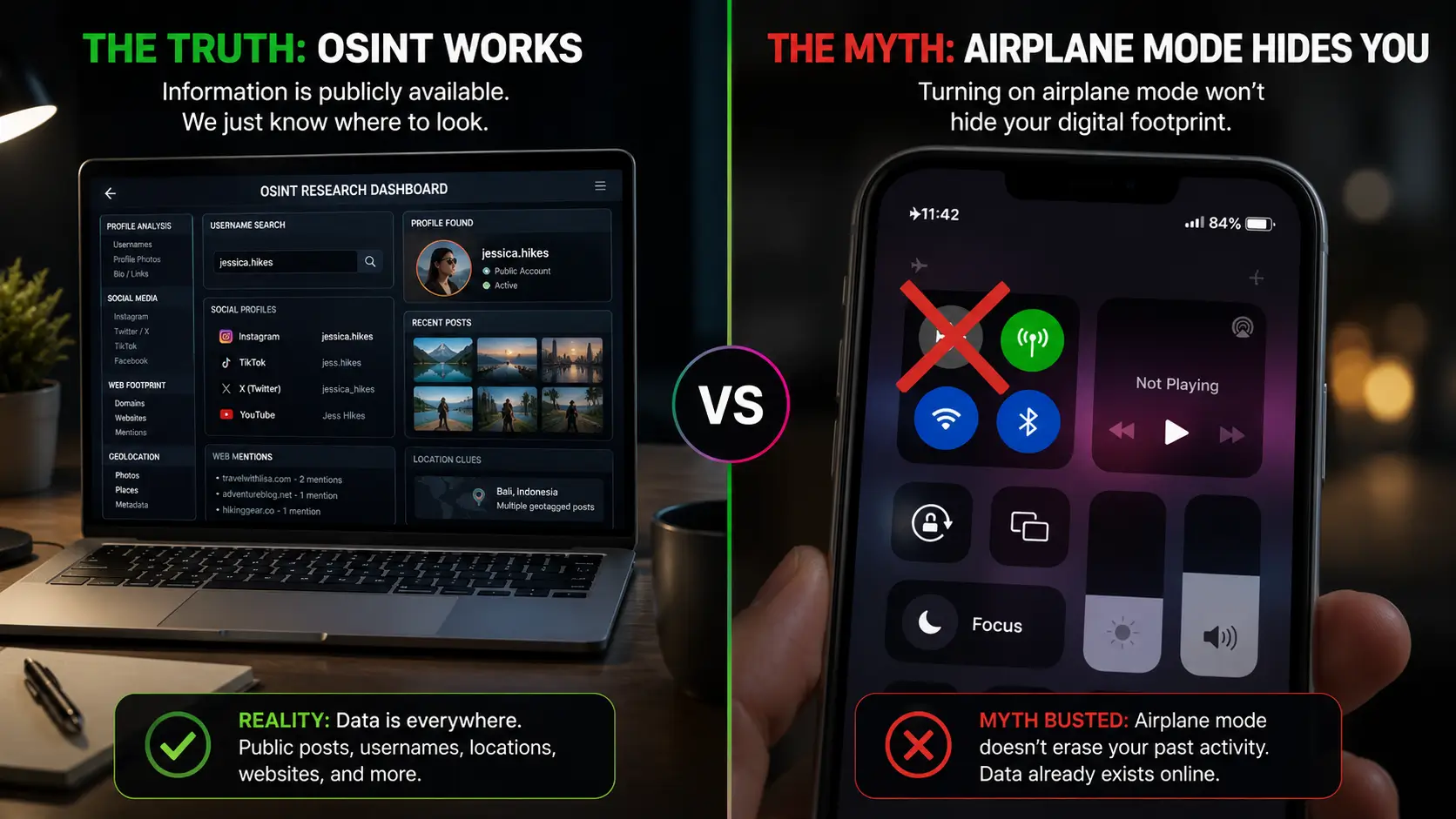
This trick circulates constantly on TikTok and Reddit, and it hasn’t actually worked for a long time, if it ever fully did. Instagram’s app architecture leans heavily on local caching precisely to handle exactly this kind of connectivity gap gracefully — your view gets logged to your device the moment it happens, then synced back to Instagram’s servers the second you reconnect to any network. Genuine anonymity requires the request never being tied to your account in the first place, which only a proxy-based web tool actually achieves — no native-app trick, on any device, replicates that.
Layering a VPN on top
A web-based viewer already hides your identity from Instagram itself. What it doesn’t automatically hide is the fact that your own Internet Service Provider can see you’re visiting that tool’s website, even if it can’t see what you searched for on it.
If that layer of privacy matters to you, pairing a VPN with the web viewer adds it: connect your VPN before opening a private browser tab, then use the tool as normal. In that setup, Instagram only ever sees the tool’s own server, the tool only ever sees your VPN’s exit server, and your ISP only sees encrypted traffic headed to a VPN — no single party holds the complete picture end to end. This is optional extra hardening, not a requirement for the core anonymity guarantee, which the server-side request architecture already provides on its own.
Whether this extra layer is worth the effort depends entirely on your actual threat model. For someone casually checking a public account’s story, it’s overkill. For a journalist or researcher whose browsing habits themselves could be sensitive if logged by an ISP or network operator, it’s a reasonable precaution — the key is matching the effort to what you’re actually trying to protect against, rather than defaulting to maximum paranoia for every use case regardless of stakes.
Reliability compared across devices
Putting the three environments side by side, here’s how they actually stack up in practice:
- Desktop: most reliable — no competing native app, full browser dev tools available if something goes wrong, easiest for reviewing multiple stories or downloading at scale.
- iPhone: reliable once you're in Safari Private mode, but the biggest single point of failure — tapping the wrong link and getting deep-linked into the native app, undoing your anonymity in one tap.
- Android: reliable after the one-time app-defaults fix; before that, the most likely to interrupt you mid-session with an unwanted app switch.
None of these differences reflect the underlying tool being more or less capable on one platform — they’re entirely about how aggressively each OS tries to hijack a link into its own native app before your browser gets a chance to handle it.
The limitation every device shares
Regardless of which device or OS you’re on, one constraint doesn’t change: these methods only work on public accounts. If the target account is private, Instagram’s servers require an authenticated, approved-follower credential before releasing any media — something no anonymous, unauthenticated proxy request can produce, on any device. Treat any tool or app claiming to bypass that specifically for a private account as either non-functional or actively malicious; see our dedicated guide on viewing private account stories anonymously for the full technical explanation of why that boundary holds regardless of platform.
Conclusion
Mastering anonymous viewing across devices comes down to understanding what’s actually threatening your privacy on each platform — Safari’s deep-linking on iPhone, Android’s aggressive app defaults, or simply picking the wrong search result. Once you route around those platform-specific traps, the underlying mechanism is identical everywhere: a server-side request, never your own logged-in account. Our own story viewer works the same way across every device for exactly that reason — it’s browser-based by design, so there’s no separate app to configure or deep-link around in the first place. For the download-specific side of this (saving the file, not just viewing it), see our companion guide on saving Instagram stories before they disappear. Whichever device you’re on, the underlying rule stays the same: anonymity comes from where the request originates, not from any setting on your phone or laptop alone.
Frequently Asked Questions
Straight answers about how the tool works, what it can and can’t do, and how to use it safely.
Why does opening a viewer link on my phone sometimes launch the Instagram app instead?
Both iOS and Android aggressively register Instagram as the default handler for instagram.com links, so tapping a link — especially from search results or a messaging app — can deep-link straight into the native app instead of your browser, which defeats the purpose if you're trying to stay logged-out and anonymous.
Does Incognito or Private Browsing mode make me anonymous to Instagram on its own?
No — it only prevents your own device from retaining history and cookies locally. It doesn't hide your request from the site you're visiting. True anonymity from Instagram's perspective requires the request to originate from a tool's server, not your own device, logged in or not.
Is a VPN required to use an anonymous story viewer safely?
No, a properly built server-side viewer already keeps your IP from reaching Instagram directly. A VPN adds an extra layer specifically hiding your traffic from your own ISP, which is a separate and optional concern, not a requirement for the tool itself to work anonymously.
Does this work the same way on a tablet as on a phone?
Yes — tablets running iOS or Android inherit the same deep-linking behavior as phones on the same OS, so the same browser-based approach and the same app-default precautions apply.
Can a website tell which device or browser I'm using?
Any website can see basic technical details like your browser type and screen size as a normal part of how the web works — this is different from your identity being exposed to Instagram specifically, which is what anonymous viewing tools are actually designed to prevent.